
In the main view/map view, you will find the menu bar at the bottom. This menu bar offers various options, which are explained in more detail here.
Notifications (Activities)
Here, you will see a chronological overview of what has happened on the watch. For example, warnings about the battery level or that a geofence has been exited or entered.
Phone
If you tap the phone icon, a small banner appears that allows you to call the desired watch directly.
The watch cannot be called. Click HERE.
Family Chat
After tapping the chat icon, the app's chat window opens and you can send a message to your Anio product.
Messages are not arriving on the watch or being received in the app?
Tap HERE.
Select Product
Tapping the watch icon opens an overview of the registered devices. Clicking the respective watch takes you to the watch's main settings. You can find all information about the settings here.
You can also register additional Anio watches via "+ Another Anio".
More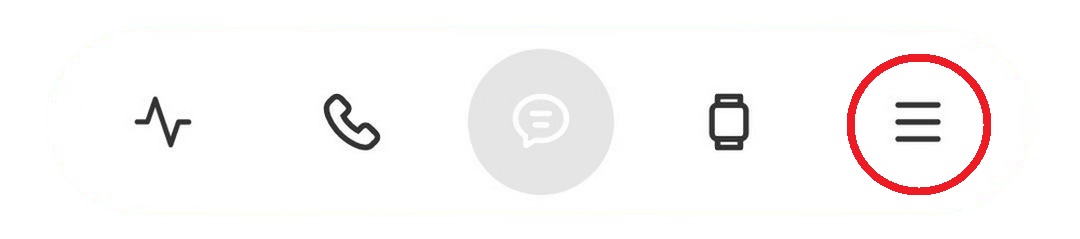
You can find all settings hidden behind the three lines here.